As part of the continuing growth of the ‘Your Books, More Books’ service, just over 4,300 new eBook titles from Sage Knowledge are now discoverable in Library OneSearch. Example titles include:
- Eating and Growth Disorders in Infants and Children
- Communication for development and social change
- Multi-agency working in the early years: challenges and opportunities
- Bullying: a complete guide to the support group method
Access to all subscribed titles in the collection is direct on-campus, and by university username and password from off-campus. At present, support for the Shibboleth protocol on the Sage Knowledge platform is limited, so we are unable to incorporate authentication-aware direct title-level deep-links in the Library OneSearch records for customers accessing Sage Knowledge titles from off-campus.
As a consequence, the current off-campus experience when logging in to the first Sage Knowlege book in a collection involves several steps (which are documented below). The library is continuing to impress on Sage the need to improve this far from seamless off-campus experience, and further updates will be provided as and when this element of the service offer improves. The current walkthrough for off-campus access is as follows:
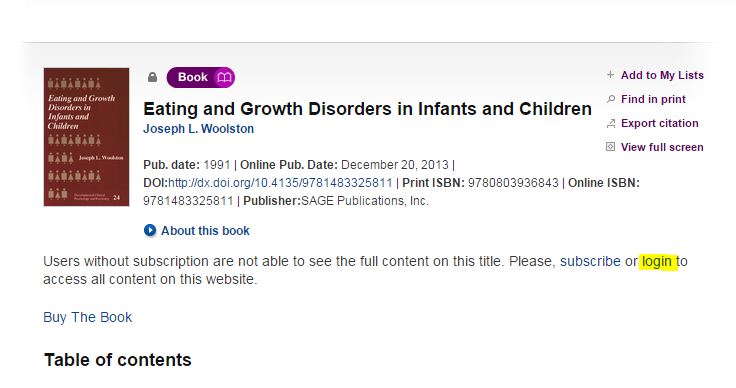
Follow the Online link from Library OneSearch, and on the Summary page for the requested title select the login option (see above).

On the login pop-up which displays, select Login via your institution (see above).

From the Please select your institution list locate ‘Nottingham Trent University’ and click on the Go to Login button (see above). On the NTU Single Sign-on page, enter your university username and password and log in.

Your browser will be returned to the homepage of the Sage Knowledge platform (and not to the individual eBook record). In the top-right hand corner of the screen, the display of ‘Nottingham Trent University’ will confirm that the login request has been processed successfully.

Return the brower to the tab or page containing the display of results from Library OneSearch and click on the View Online link for a second time. This will return the display in your browser of the Sage Knowledge platfom to the authenticated full-text of the requested eBook, with the display of the Nottingham Trent University logo in the top right-hand of the screen confirming that a current logged-in session is active.
Subsequent requests from Library OneSearch to Sage Knowledge titles (in the same off-campus session) will resolve to the authenticated full-text at the title level.


 eResource updates
You must be logged in to post a comment.